Set up Kratu in five minutes
One page in your editor connects Kratu to your board and your code. This guide shows every screen, for every common setup: Azure DevOps, Jira, GitHub, and code that lives somewhere else than the work items.
Applies to Kratu 0.10 · Screens from VS Code (dark theme); Cursor, Windsurf and Antigravity look the same
The short version
- Install Kratu from your editor’s Extensions view, and one AI coding agent (for example Claude Code).
- Open your repository, click the Kratu icon, then Set up Kratu.
- Pick your board, paste its link, sign in, press Test connection. Every field has a Show me how.
- If your code is on another service (say Jira issues, GitHub code), sign in there too in Where is your code?
- Press Save and open my queue. Everything else has a sensible default.
Before you start
- An editor: VS Code, Cursor, Windsurf, Antigravity or VSCodium.
- Your repository cloned on your computer, with its remote (
origin) pointing at Azure Repos, GitHub or another git host. Kratu pushes branches with your own git sign-in, sogit pushshould already work. - Access to your board: you can open it in your browser and create a token (or use the Azure CLI or GitHub CLI instead).
1 · Install Kratu
| Editor | How |
|---|---|
| VS Code | Extensions view (Ctrl+Shift+X / Cmd+Shift+X) → search Kratu → Install. Or open it on the VS Code Marketplace. |
| Cursor, Windsurf, Antigravity, VSCodium | Extensions view → search Kratu → Install. These editors install from Open VSX. |
A Kratu icon appears in the Activity Bar (the left edge of the editor).
2 · Install an AI coding agent
Kratu doesn’t bring its own AI. It drives the coding CLI your team already uses and is allowed to use: Claude Code, OpenAI Codex, GitHub Copilot CLI and other leading coding agents. Install one and sign in to it once in a terminal.
Not sure which commands to run? In the editor, open the Command Palette (Ctrl+Shift+P / Cmd+Shift+P) and run Kratu: Show AI Coding Agents. It lists the agents it found, their versions, and the install command for each one it didn’t.
3 · Open setup
Open your repository folder, click the Kratu icon and press Set up Kratu (or run Kratu: Set Up from the Command Palette). One page opens:
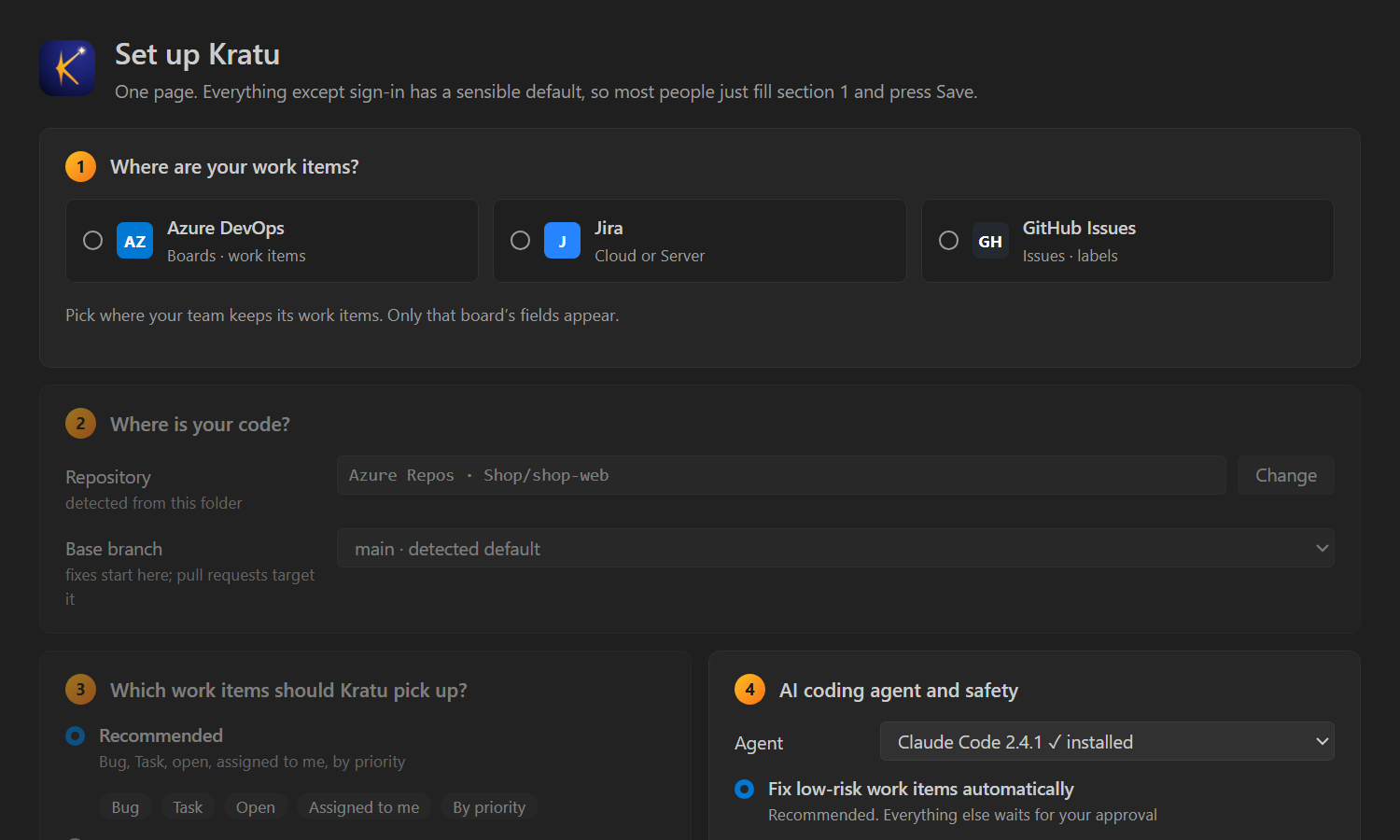
Nothing is saved until you press Save, so you can explore freely.
4 · Find your setup
Kratu needs two things: where your work items are (the board) and where your code is (the repository). They can be the same service or different ones. Find your row:
| Work items in | Code in | What you do |
|---|---|---|
| Azure DevOps | Azure Repos, same organization | Sign in once. Everything in Azure DevOps |
| Azure DevOps project A | Azure Repos, project B | Sign in once, and confirm the repository. Two projects |
| Jira | GitHub | Sign in to Jira, and to GitHub for pull requests. Jira + GitHub |
| Jira | Azure Repos | Sign in to Jira, and to Azure DevOps for pull requests. Jira + Azure Repos |
| GitHub Issues | GitHub | Sign in once. Everything in GitHub |
| Azure DevOps | GitHub | Sign in to Azure DevOps, and to GitHub for pull requests. Azure Boards + GitHub |
| Any board | GitLab, Bitbucket, others | Sign in to the board. Kratu pushes the branch and gives you the link to open the pull request. Other git hosts |
Does GitHub have work items? Yes: GitHub Issues (with labels and milestones) work as a board in Kratu. But many teams keep their work items in Jira or Azure DevOps and only their code on GitHub. Both work.
Everything in Azure DevOps
Your work items are in Azure Boards and your code is in Azure Repos in the same organization. One sign-in covers both.
- Pick Azure DevOps.
- Paste the link. Open your project in the browser (for example Boards → Work items) and copy the address bar. It looks like
https://dev.azure.com/your-org/YourProject/…. Anything after the project name is fine. - Sign in. Choose Personal Access Token and press Create a token: Azure DevOps opens Personal access tokens. Click + New Token, give it a name and an expiry, and tick Work Items: Read & write and Code: Read & write. Copy the token (Azure DevOps shows it only once) and paste it into Kratu. No token? Choose Azure CLI (after
az login) or Git Credential Manager instead. - Press Test connection. You see “Connected as” your name, and the project is read from the link.
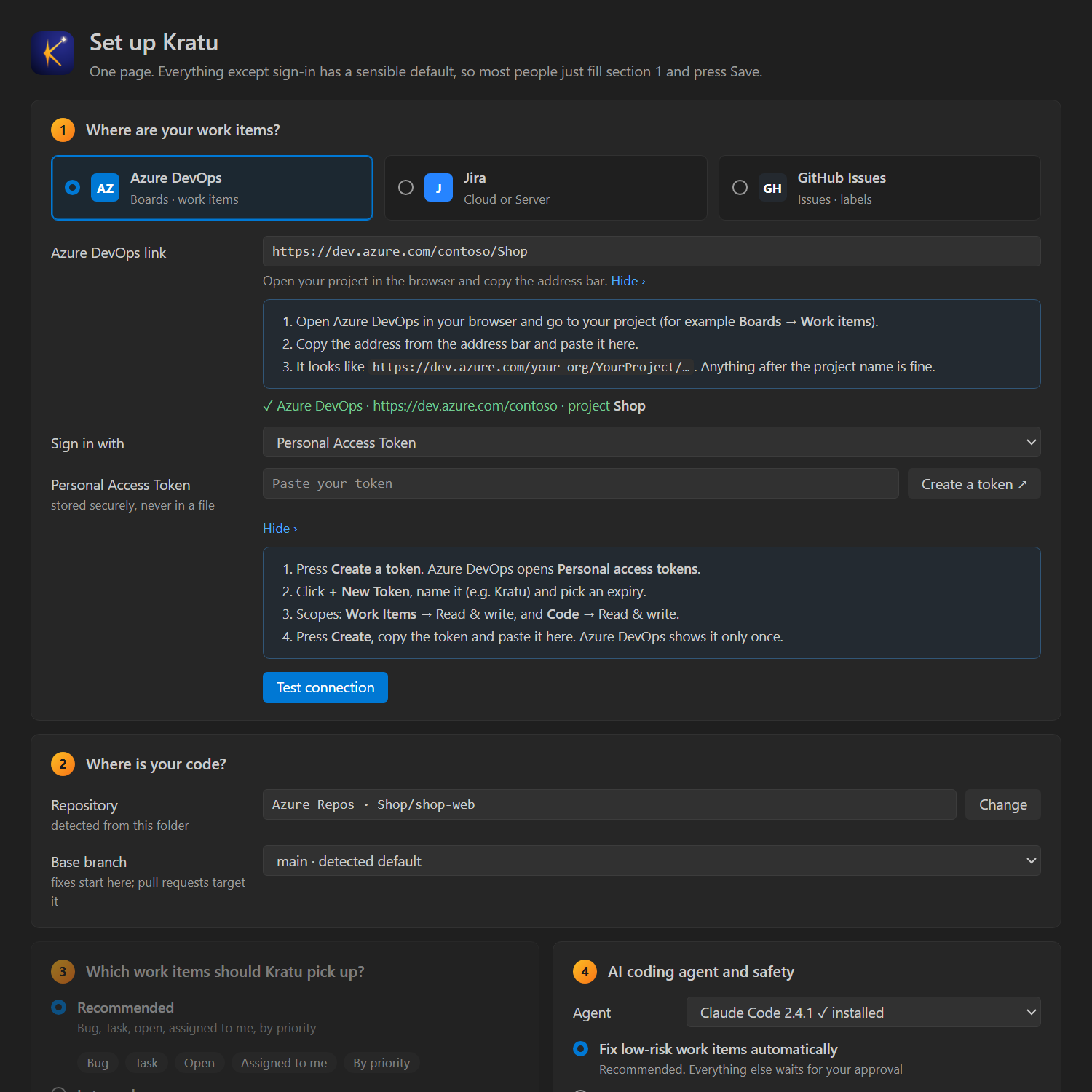
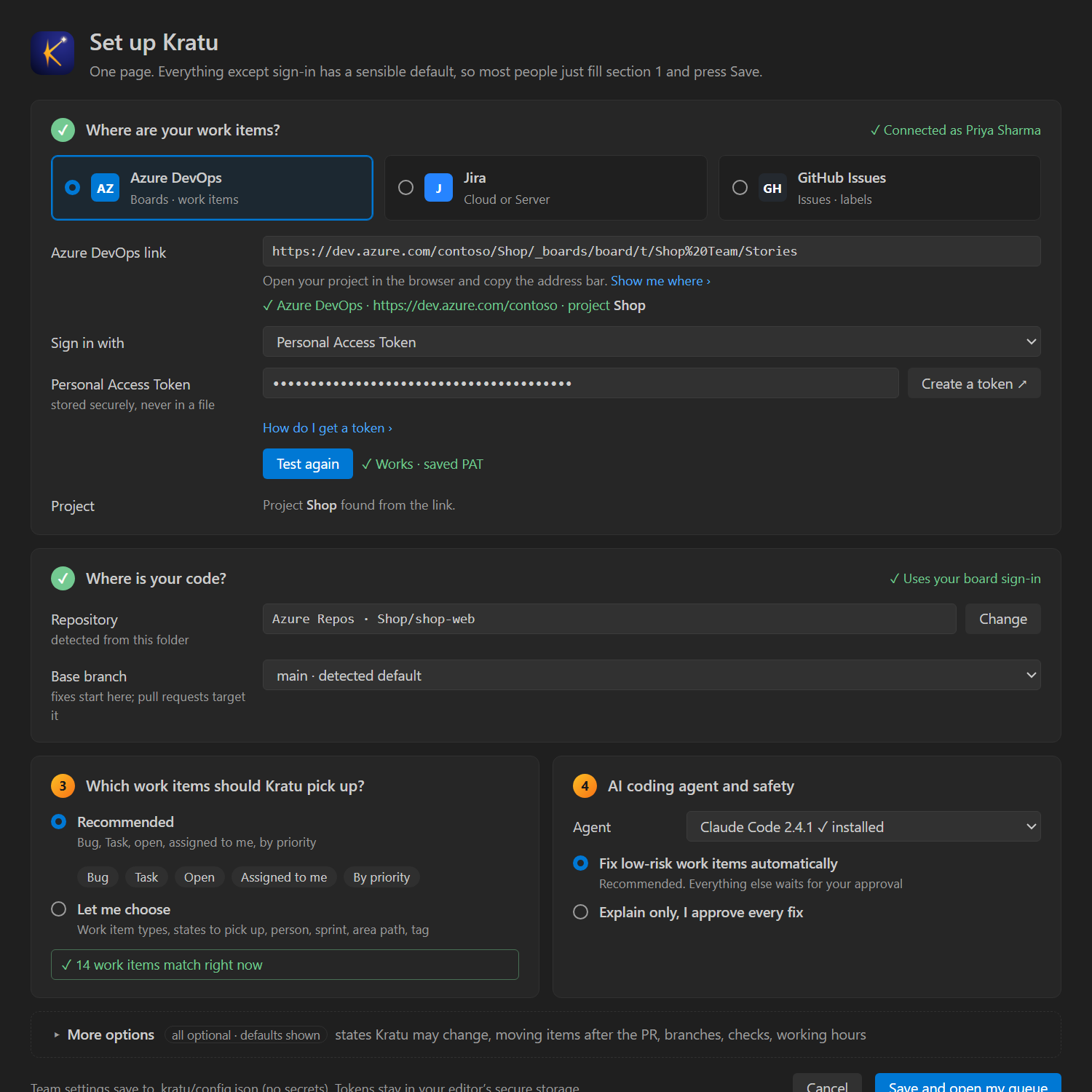
Work items in one Azure DevOps project, code in another
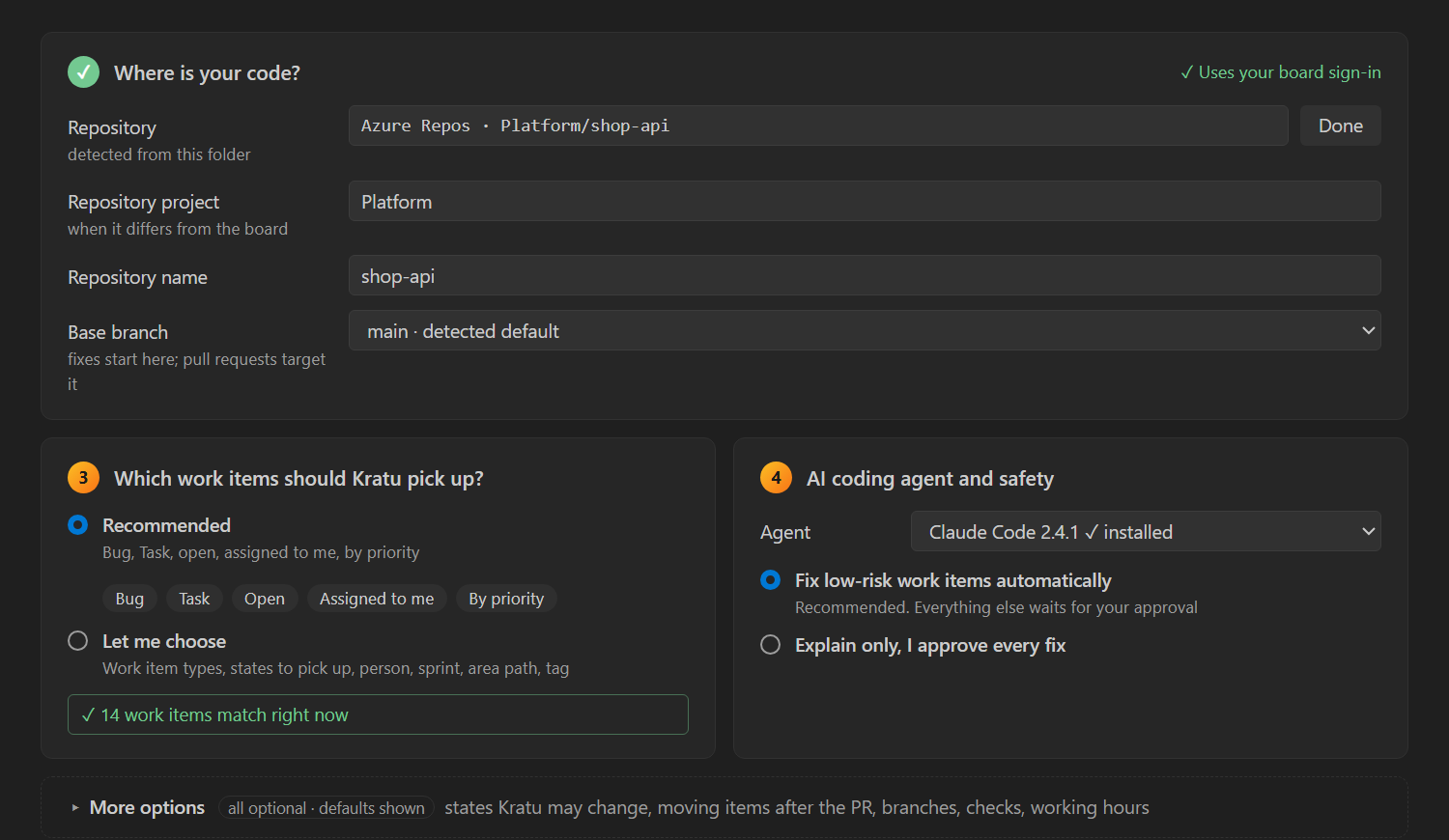
Common in larger organizations: the board lives in a Shop project, the repositories in a Platform project. Kratu reads the work items from the board’s project and opens the pull request in the repository’s project, with the same sign-in.
- Set up the board exactly as in Everything in Azure DevOps, using the board’s project link.
- In Where is your code?, check the repository Kratu detected from your folder. If it’s wrong (for example a fork or a mirror), press Change and type the repository’s project and name.
- Your token needs Code: Read & write on the repository’s project too.
Work items in Jira, code on GitHub
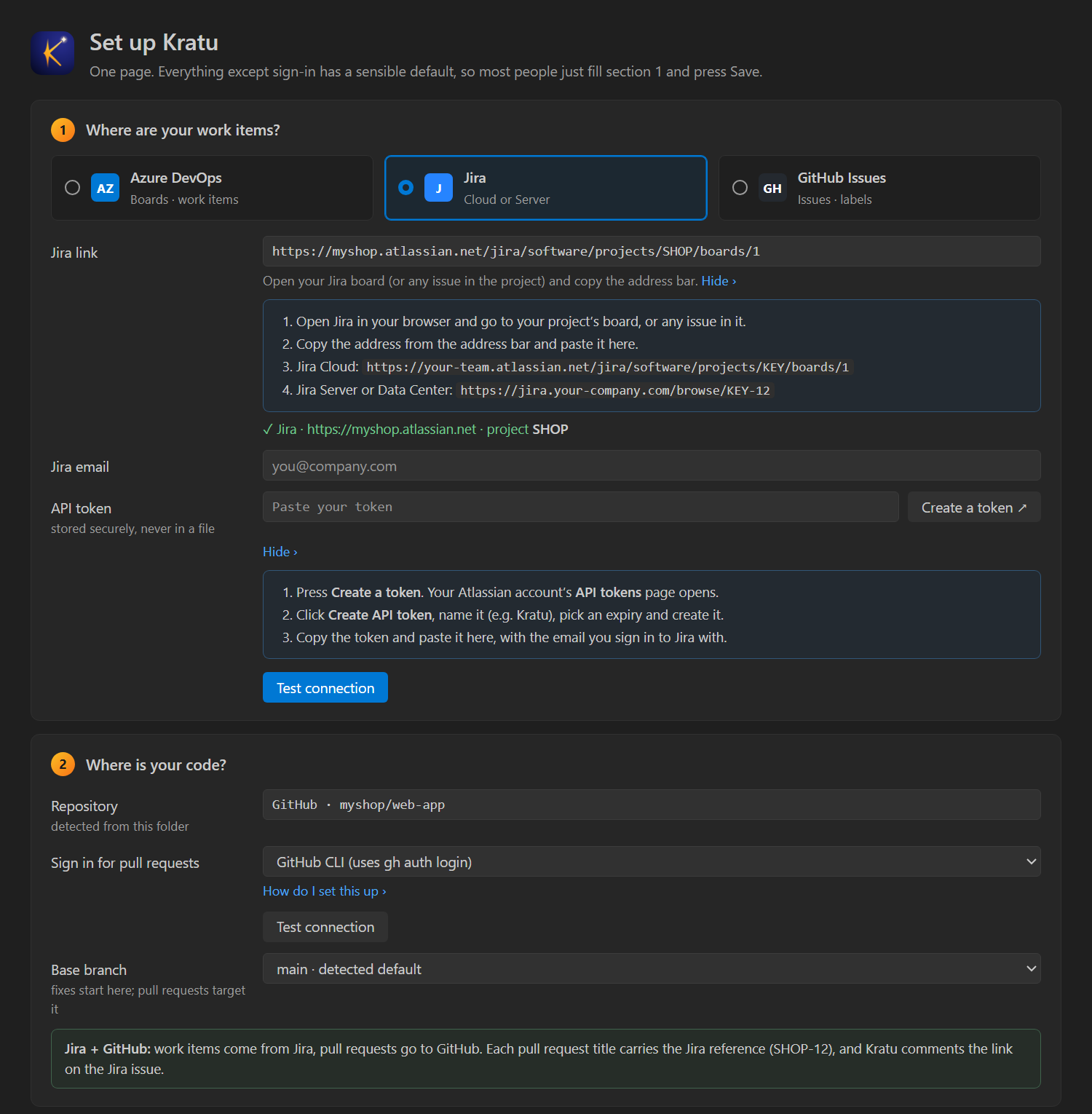
Jira holds the issues; GitHub holds the code. Kratu reads the issue from Jira, fixes it, and opens the pull request on GitHub. The pull request title carries the Jira key (SHOP-12), and Kratu comments the link on the Jira issue. If your team uses the GitHub for Jira app, Jira shows the pull request on the issue too.
- Pick Jira and paste a link to your board or any issue. Jira Cloud:
https://your-team.atlassian.net/jira/software/projects/KEY/boards/1. Jira Server or Data Center:https://jira.your-company.com/browse/KEY-12. - Jira Cloud: enter the email you sign in to Jira with, then press Create a token: your Atlassian account’s API tokens page opens. Click Create API token, name it, copy it and paste it into Kratu. Jira Server / Data Center: avatar → Profile → Personal Access Tokens → Create token.
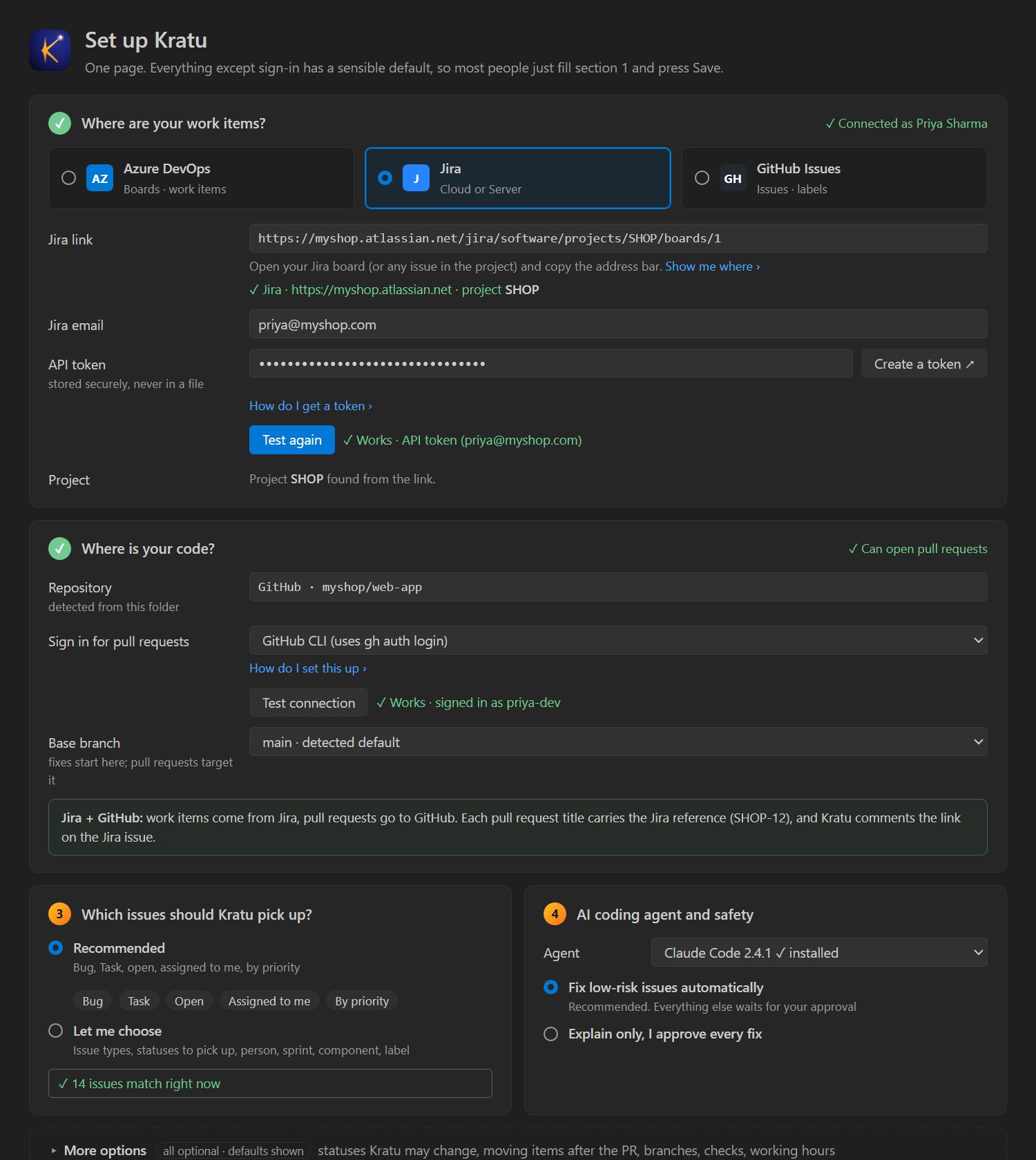
- Press Test connection.
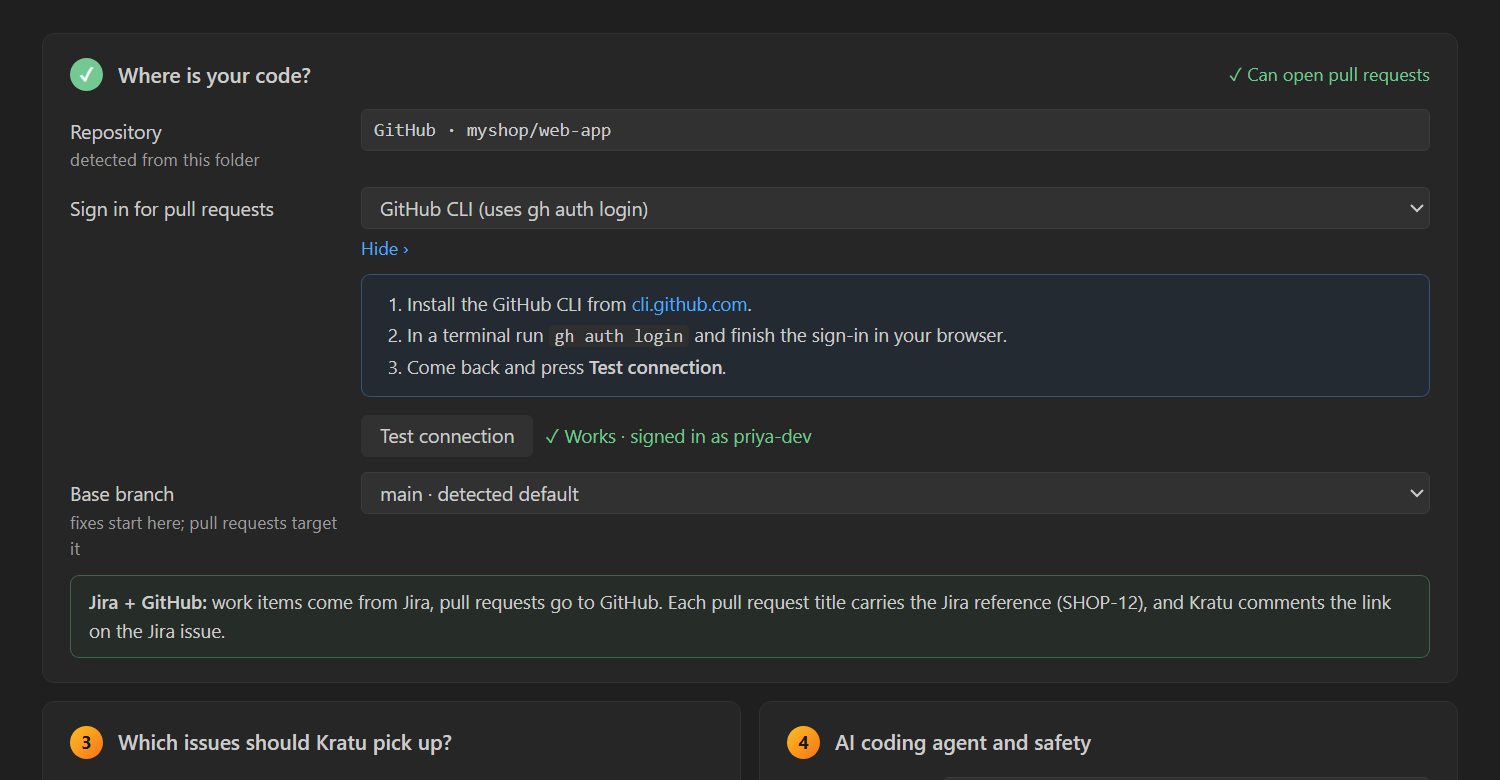
- In Where is your code?, Kratu shows GitHub · owner/repo and asks how to sign in for pull requests. The easiest is GitHub CLI: run
gh auth loginonce in a terminal. Or choose A GitHub token and press Create a token: a fine-grained token for this repository with Pull requests and Contents set to Read and write. - Press Test connection in that section too.
Work items in Jira, code in Azure Repos
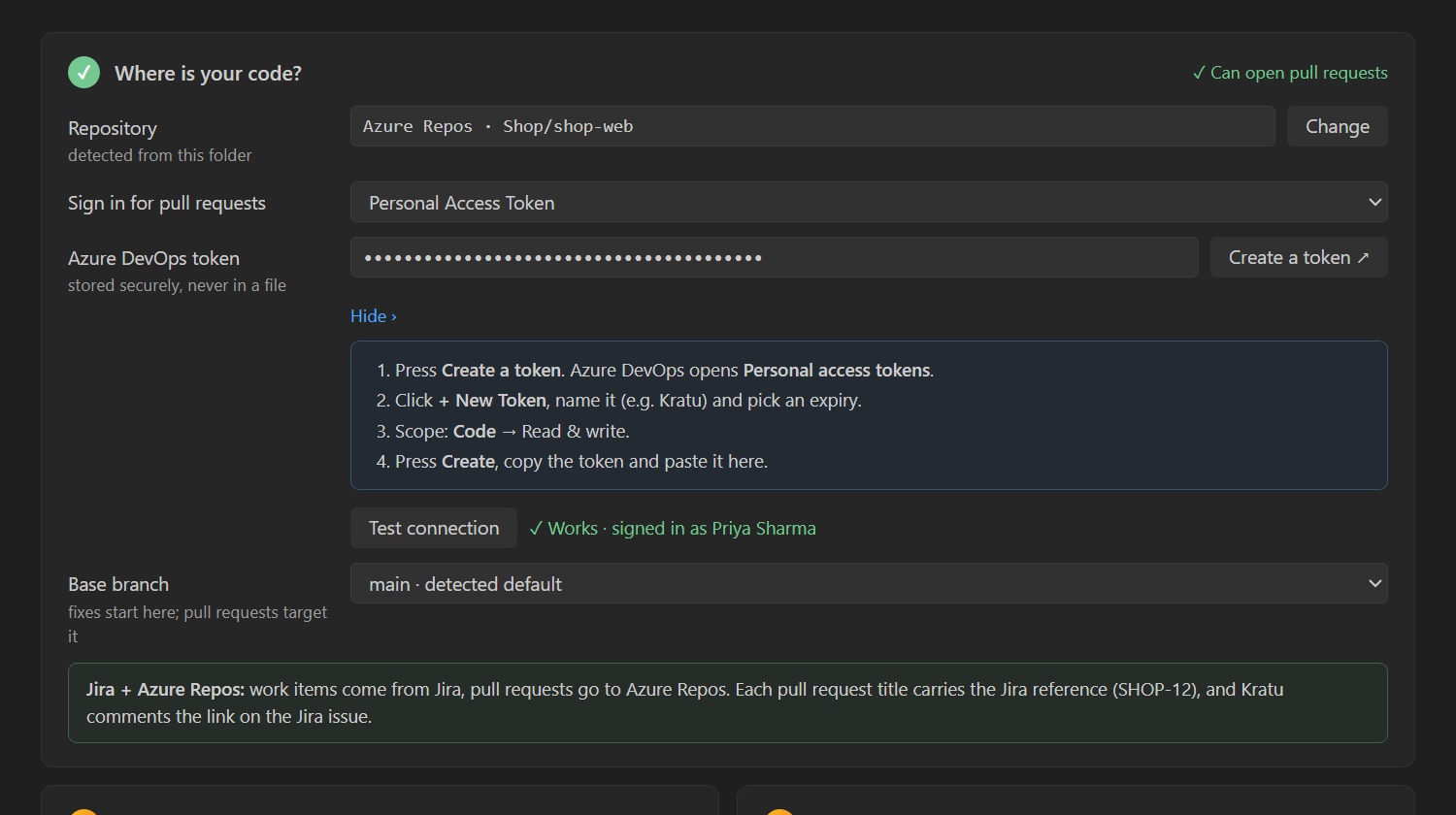
Set up Jira as above. In Where is your code?, Kratu shows Azure Repos · Project/repository and asks for an Azure DevOps sign-in for pull requests: a Personal Access Token with Code: Read & write, the Azure CLI, or Git Credential Manager. This token is kept separately from your Jira token.
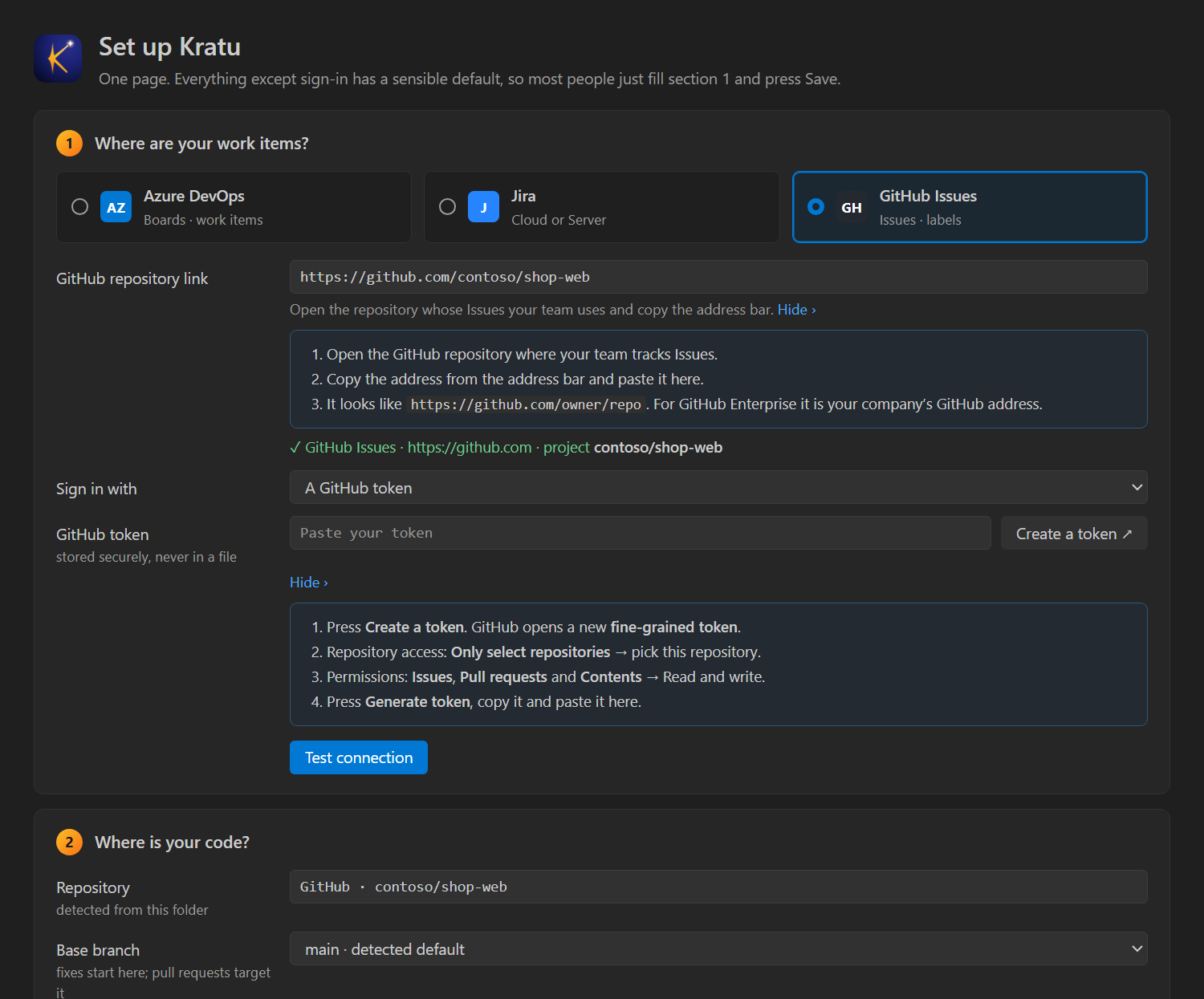
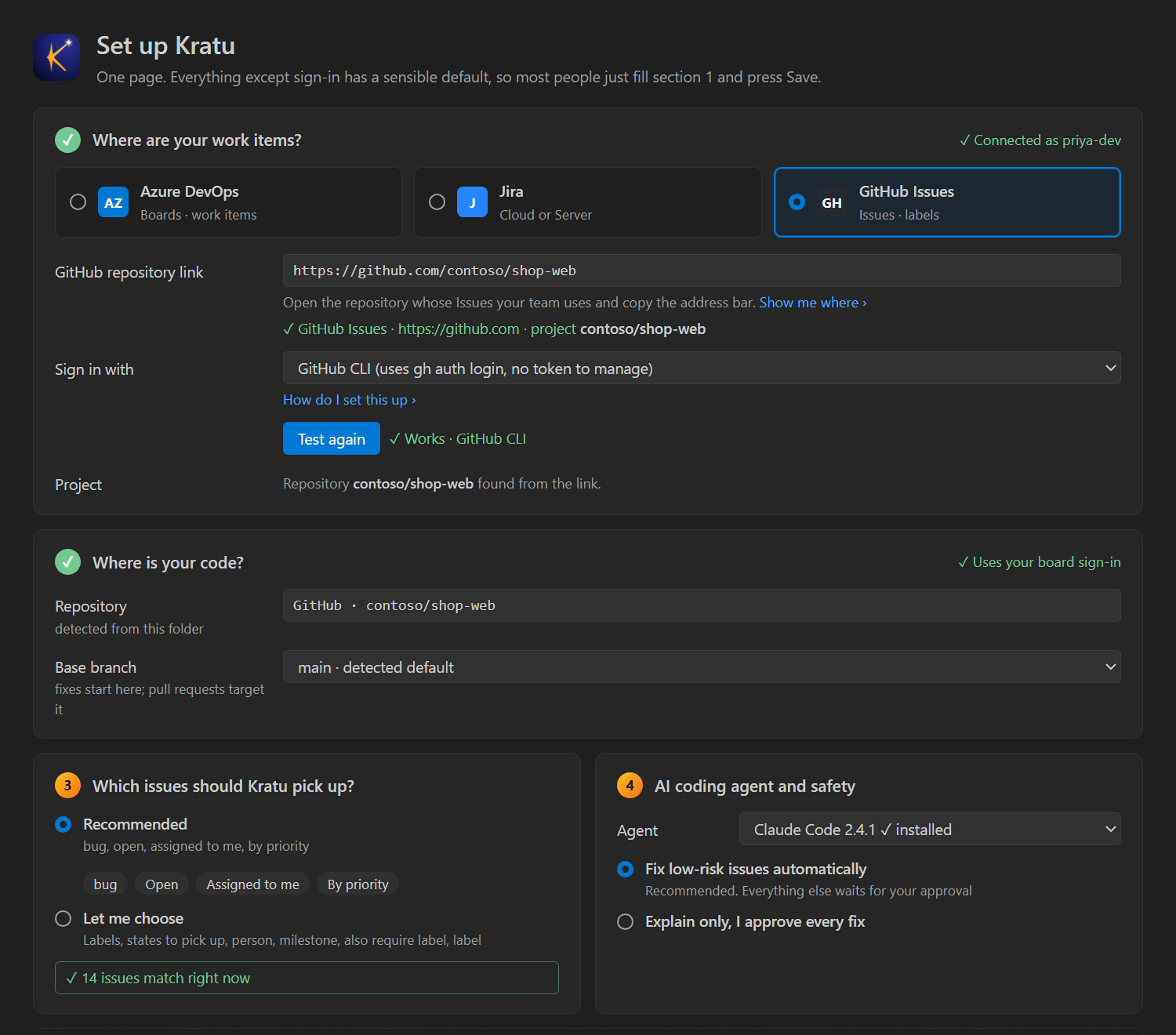
Everything in GitHub
Issues and code in the same GitHub repository (github.com or GitHub Enterprise Server). One sign-in covers both, and pull requests say “Fixes #12”, so merging closes the issue.
- Pick GitHub Issues and paste the repository link, like
https://github.com/owner/repo. - Sign in with the GitHub CLI (
gh auth loginonce), or a fine-grained token for this repository with Issues, Pull requests and Contents set to Read and write. - Press Test connection. If your organization uses single sign-on (SSO), authorize the token for the organization on GitHub first.
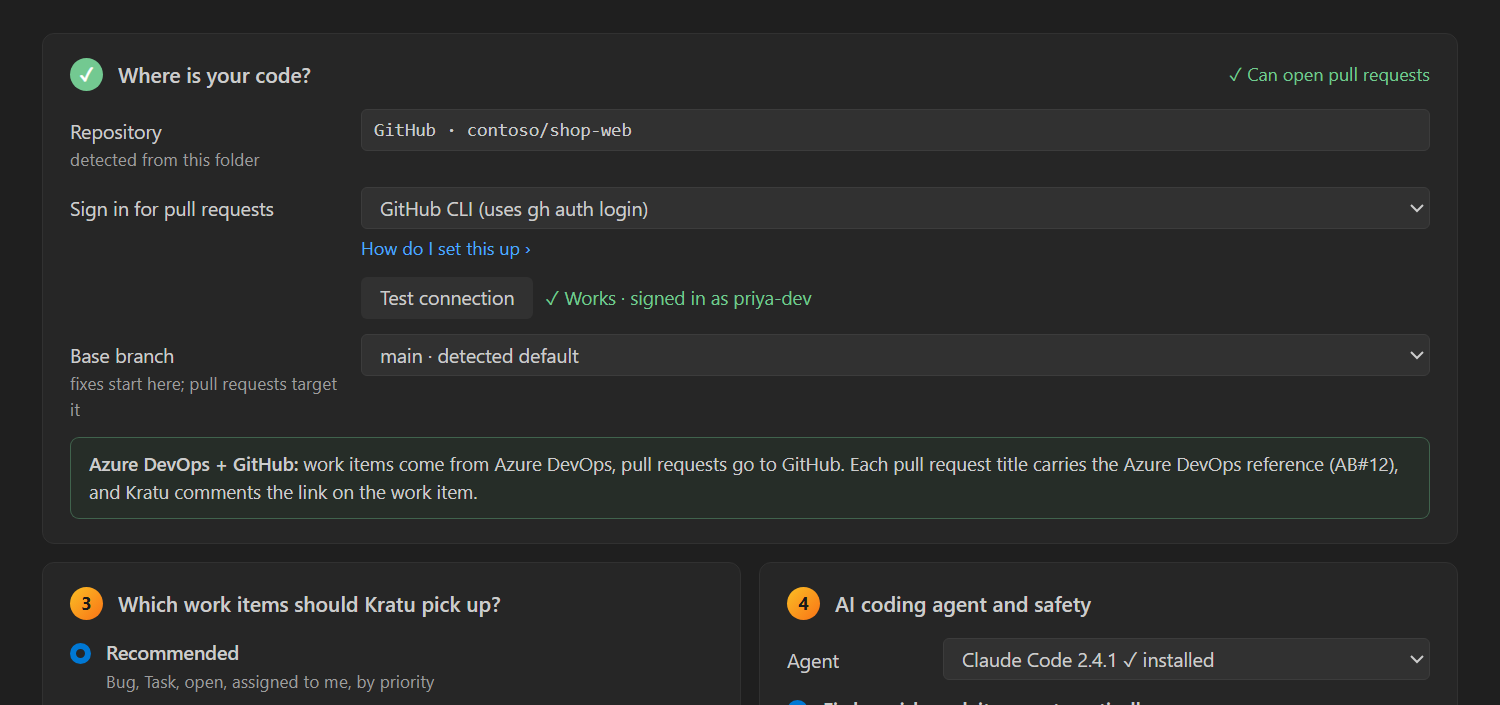
Work items in Azure Boards, code on GitHub
Set up Azure DevOps as in Everything in Azure DevOps (your token only needs Work Items: Read & write here). In Where is your code?, sign in to GitHub with the GitHub CLI or a token, like in Jira + GitHub. Pull request titles carry AB#12, which the Azure Boards app for GitHub turns into a link on the work item.
GitLab, Bitbucket and other git hosts
Kratu works with any board above and any git host: it fixes the item, runs your checks and pushes the branch with your own git sign-in. On hosts other than GitHub and Azure Repos it then shows you the link to open the pull request yourself. Opening pull requests directly on GitLab and Bitbucket is planned.
5 · Which items should Kratu pick up?
Recommended is one click: bugs and tasks, open, assigned to you, by priority. The form counts how many match right now.
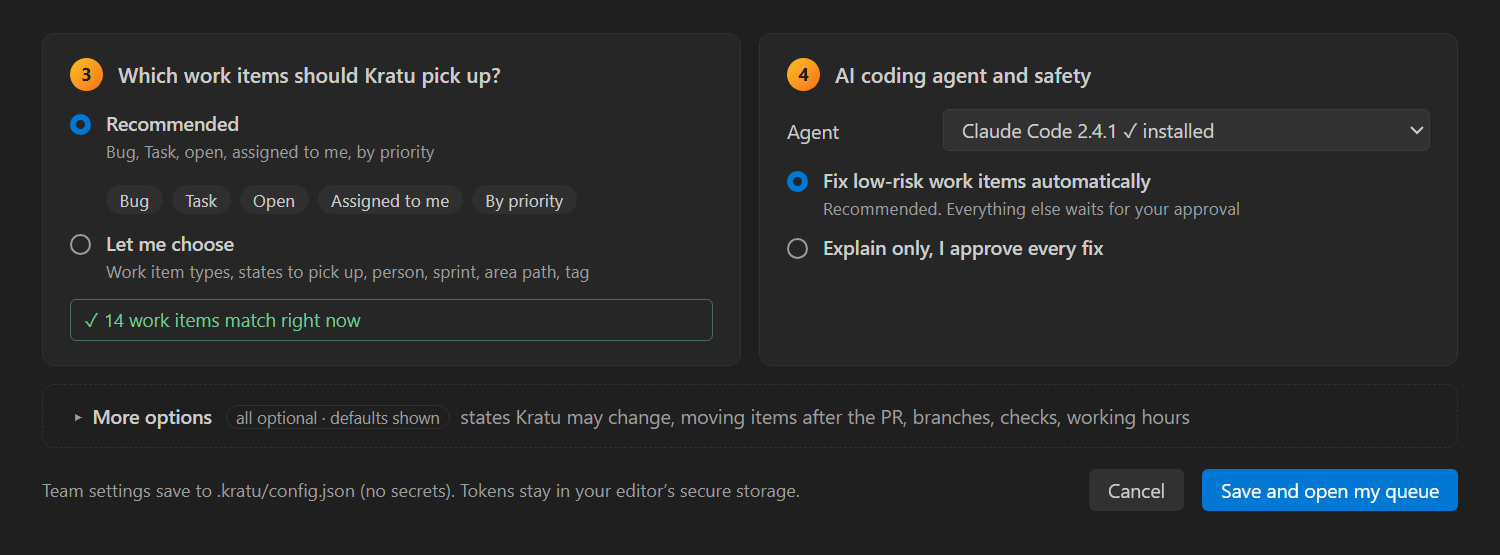
Let me choose loads your own types and states from your board. Untick the states Kratu should leave alone, like Dev Completed, Ready for QA or Blocked: Kratu never reads, comments on or changes items in those states. Optional fields (component or area, label or tag) say so; leave them empty for all.
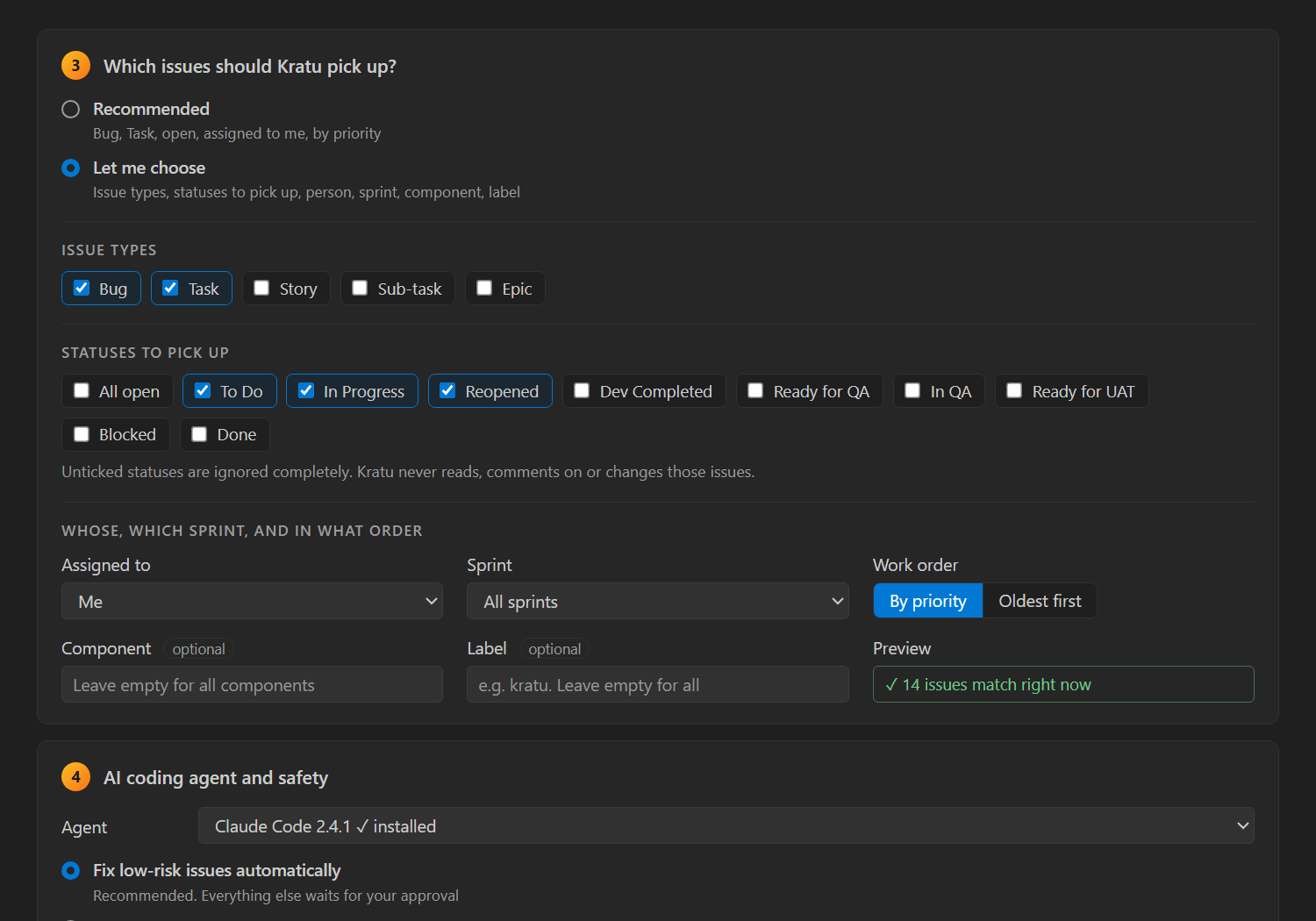
Section 4 picks your installed agent and the safety level: Fix low-risk items automatically (everything else waits for your approval), or Explain only, where you approve every fix.
6 · More options (all optional)
Folded away, with sensible defaults. Open it when you want to fine-tune:
- May change code in: some picked-up states are only analyzed and explained, never changed.
- After the pull request opens: move the item to a state, for example Dev Completed, or leave it.
- Branch for each fix and checks before the pull request (quick checks on the changed files, your full test suite, or none).
- Working hours: let Kratu work through the queue on its own between set times, within a daily limit, even with the editor closed. Pause it any time from the Kratu menu.
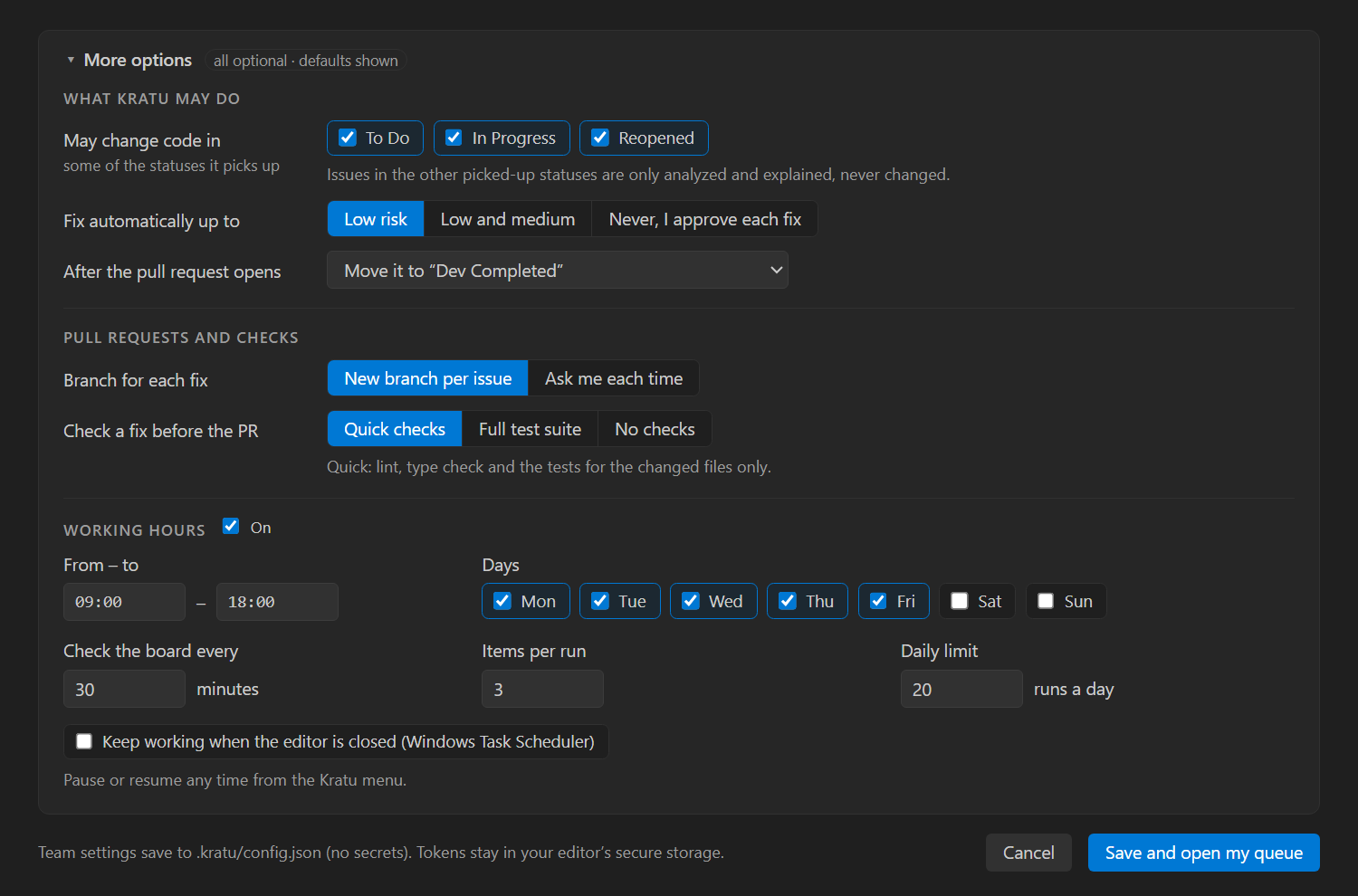
Press Save and open my queue. Team settings go to .kratu/config.json, which holds no secrets: commit it so your team shares the same setup. Tokens stay in your editor’s secure storage (your OS keychain), never in a file.
7 · Your first fix, and after the pull request
- In the Kratu sidebar, hover an item and press 🔍 Analyze to see the root cause, the plan and the risk, or 🪄 Fix to go all the way to a pull request.
- Progress and any questions appear in the Kratu panel. A person always reviews and merges; Kratu never merges.
- When the pull request is ready, the panel lets you:
- Rate it 👍 or 👎. Your answer stays on your computer.
- Ask for a change, like “also handle empty names”. Kratu works on the same branch, runs your checks and pushes to the same pull request.
- Update with the base branch when main has moved on or the pull request shows merge conflicts. Kratu brings in the newest commits and its agent resolves the conflicts. Nothing is force-pushed, and if a conflict can’t be resolved safely, nothing is pushed.
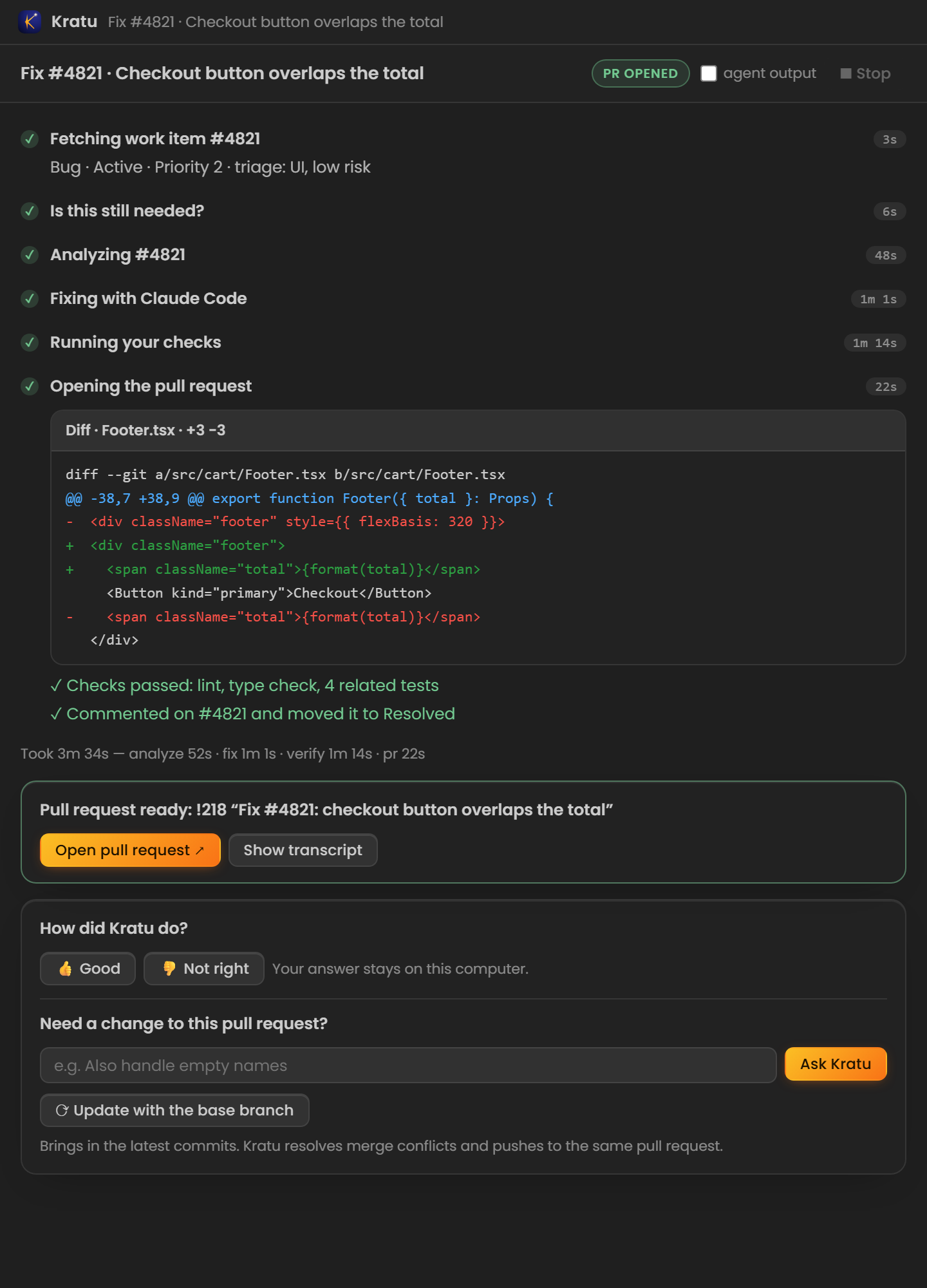
Both actions are also in the sidebar: right-click an item that has a pull request.
Your code and your tokens stay with you
- Kratu runs on your computer. It has no server and no telemetry. It talks only to your board, your code host and your git remote.
- Tokens live in your editor’s secure storage (Windows Credential Manager, macOS Keychain or the Linux secret service), never in a file. Team settings in
.kratu/config.jsonhold no secrets, so they are safe to commit. - Create tokens with the smallest permissions this guide lists, a short expiry, and for one repository where the service allows it. The GitHub CLI and the Azure CLI need no token at all.
- Your rating, reports and “finished” pop-ups are made on your computer from local records. Nothing is sent anywhere.
- The full picture is on the Security & privacy page.
If something fails
| You see | What to do |
|---|---|
| Test connection fails with 401 or “not authorized” | The token is wrong, expired or missing a permission. Create a new one with the permissions above and paste it again. |
| Jira Cloud: “unauthorized” with a correct token | Check the email: it must be the one you sign in to Jira with, and the token must be from the same Atlassian account. |
| GitHub: a token works for your repositories but not your company’s | Your organization uses SSO: on GitHub, open the token and Configure SSO → authorize the organization. Or use the GitHub CLI. |
| “This folder has no git remote” | Kratu can’t push without one. Clone the repository from your git host, or add it: git remote add origin <clone url>. |
| “No AI coding CLI is installed yet” | Run Kratu: Show AI Coding Agents for install commands, install one, sign in to it in a terminal, then press Check again. |
| Nothing matches the filter | Choose Recommended, or tick All open states and Anyone for the assignee, then narrow it down. |
| The pull request isn’t opened, only the branch is pushed | Your code is on a different service than your board and has no sign-in yet: run Kratu: Set Up and sign in under Where is your code? |
Run Kratu: Check Setup any time: it checks git, your board, your repository, your checks and your agents, and says exactly how to fix anything missing. Still stuck? Kratu: Report a Problem prepares a short report for you to read before you email it (no code, no work item text). Or write to contact@manojkumardevarakonda.stream.